
6. Entering Data: Adding Additional Family Member to Entry/Exit
There are times when additional family members may join a household currently being served by a project, such as when a baby is born, this tip sheet is designed to assist HMIS users with how to add additional family members to a household and to a project entry for which service is already in progress. This tipsheet is specific for projects using the Clients tab.
Adding a new client to an existing Household
- Search for and open the Head of Household's record.
- Back Date Prompt: list the date the new household member joined and click Set New Back Date
- Click on the Households tab
If a household already exists:
- Click on Manage Household to edit the existing household
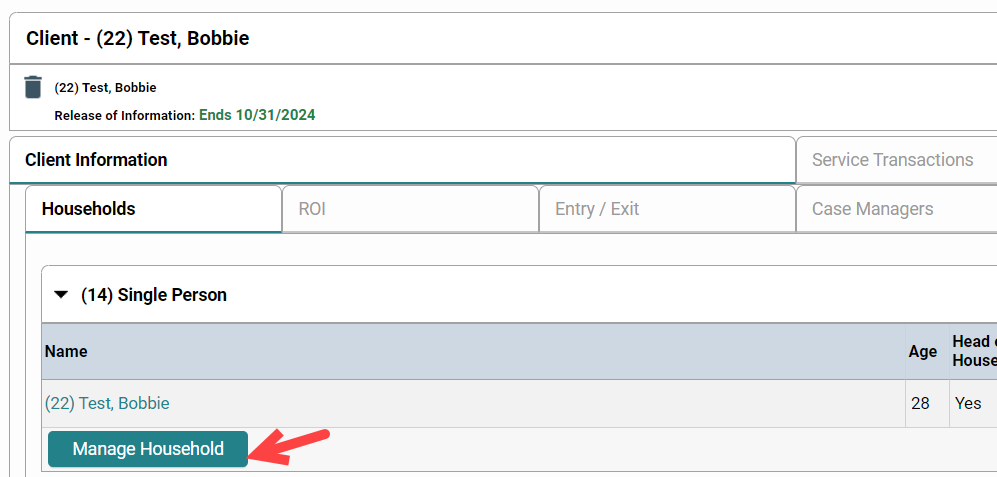
- Update the Household Type, if appropriate
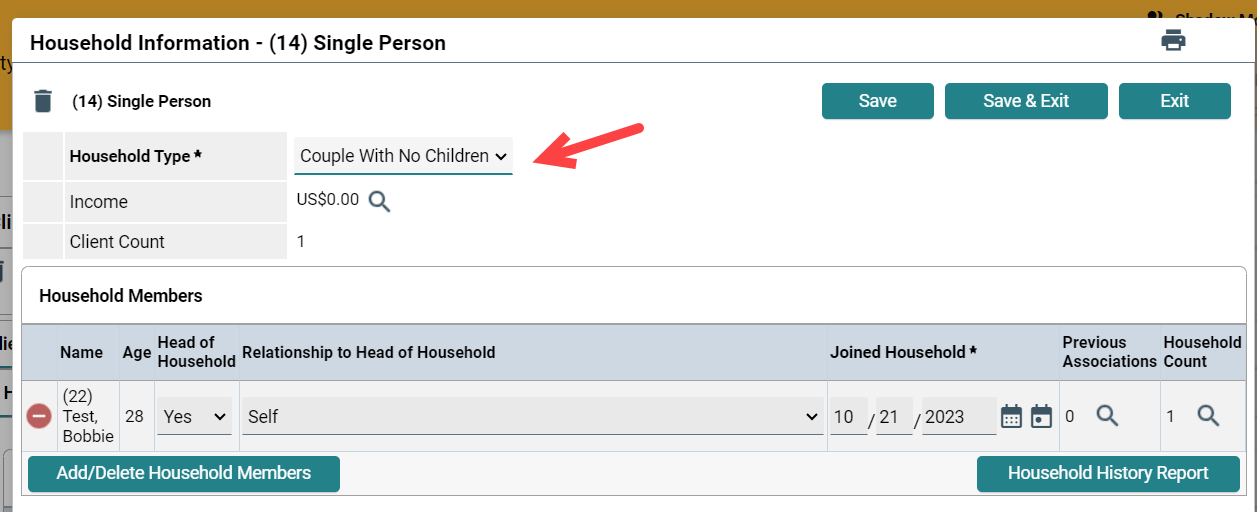
- Click arrow in front of Previous Household Members
-
- If the individual is in the list, click the circular blue arrow in front of client’s name
- Fill in the date the client rejoined the household and the relationship
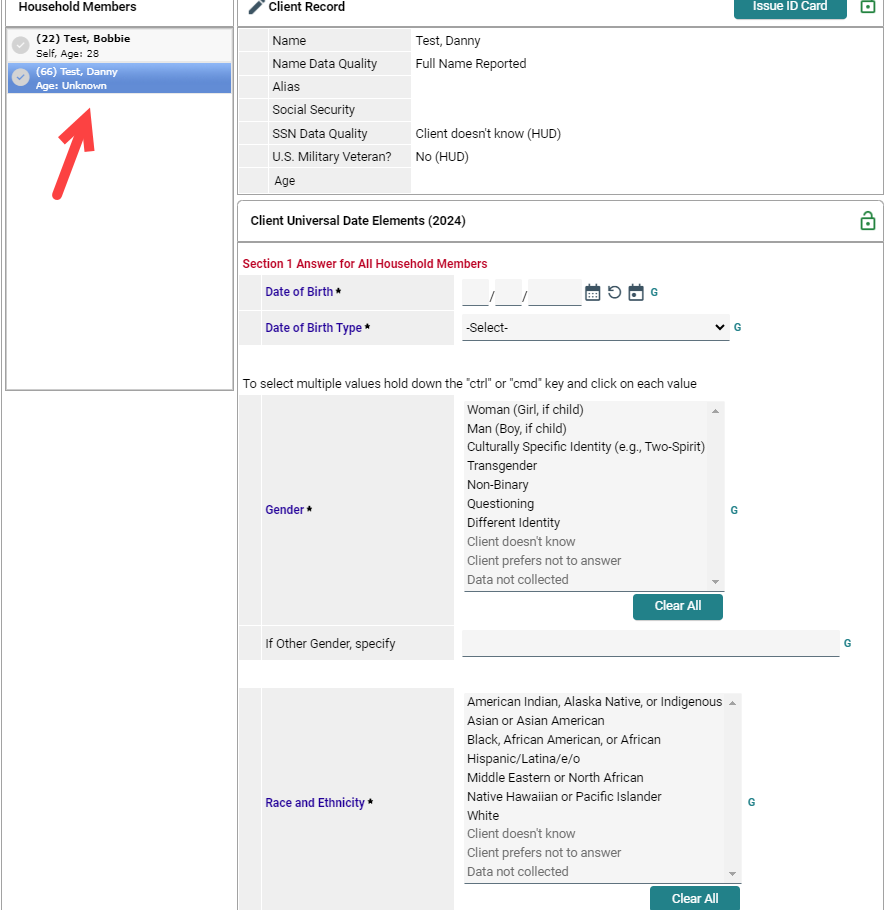
- In the list of household members on the left-hand side, click on the individual’s name and fill in any missing answers
- If the individual is not in the list, click Add/Delete Household Members
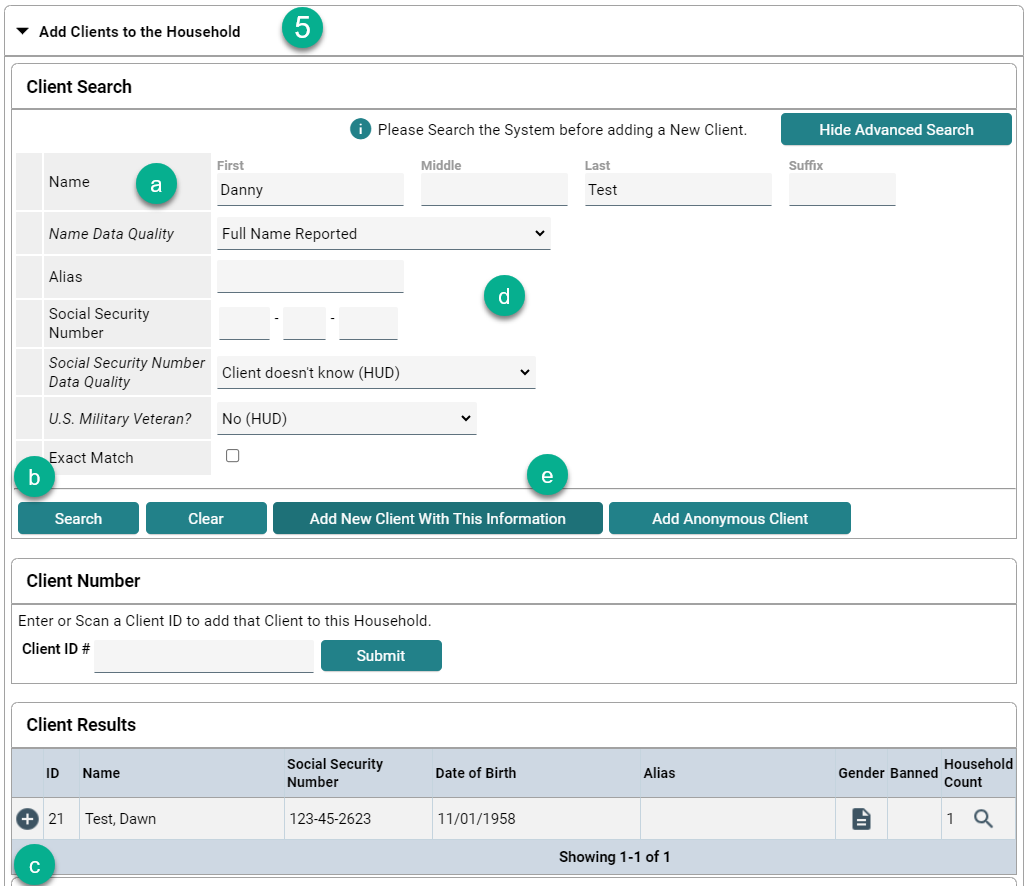
- Click the arrow in front of Add Clients to the Household
- Fill in the individual’s name, name data quality, SSN, SSN data quality, and veteran status, then search
- If the client appears in the search results, click the green button to add them to the household
- If the client does not appear in the search results, click Add new Client with this Information
- Repeat for each individual joining the household, then click continue.
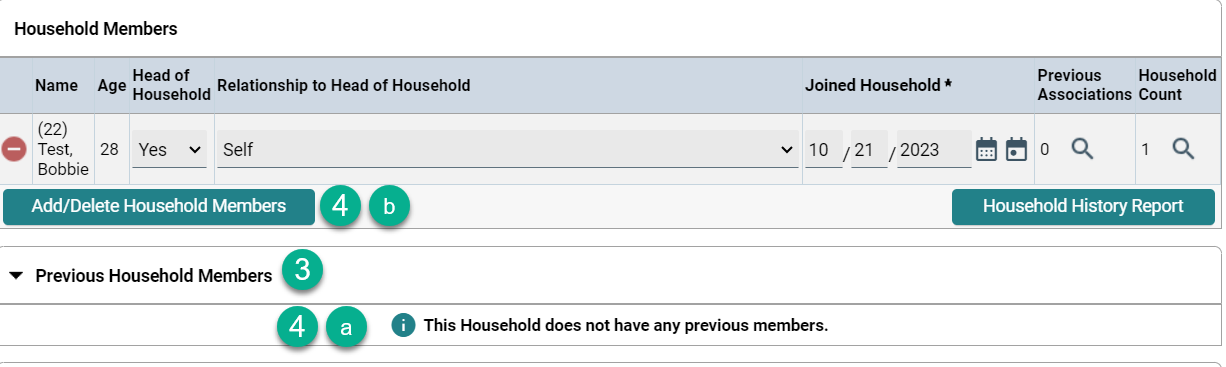
- If the individual is in the list, click the circular blue arrow in front of client’s name
- Add Clients to the Household
- Enter the name of the new household member
- Search
- If client is listed in the Client Result box, click the + sign by the name.
- If the client is not listed, finish entering the Search data
- Click Add New Client with This Information
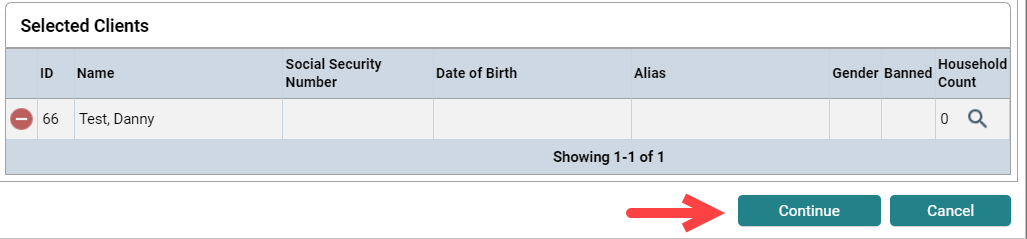
- Once all clients to be added to the household are listed under the Selected Clients, click Continue
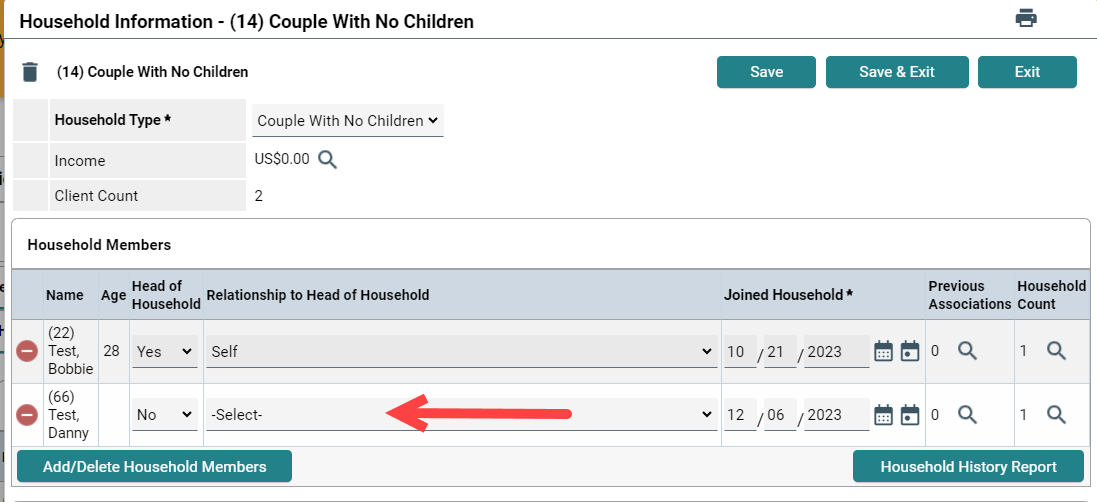
- Answer the Relationship to the Head of Household for each new member
- Answer the Client Univesal Date Elements for the new members
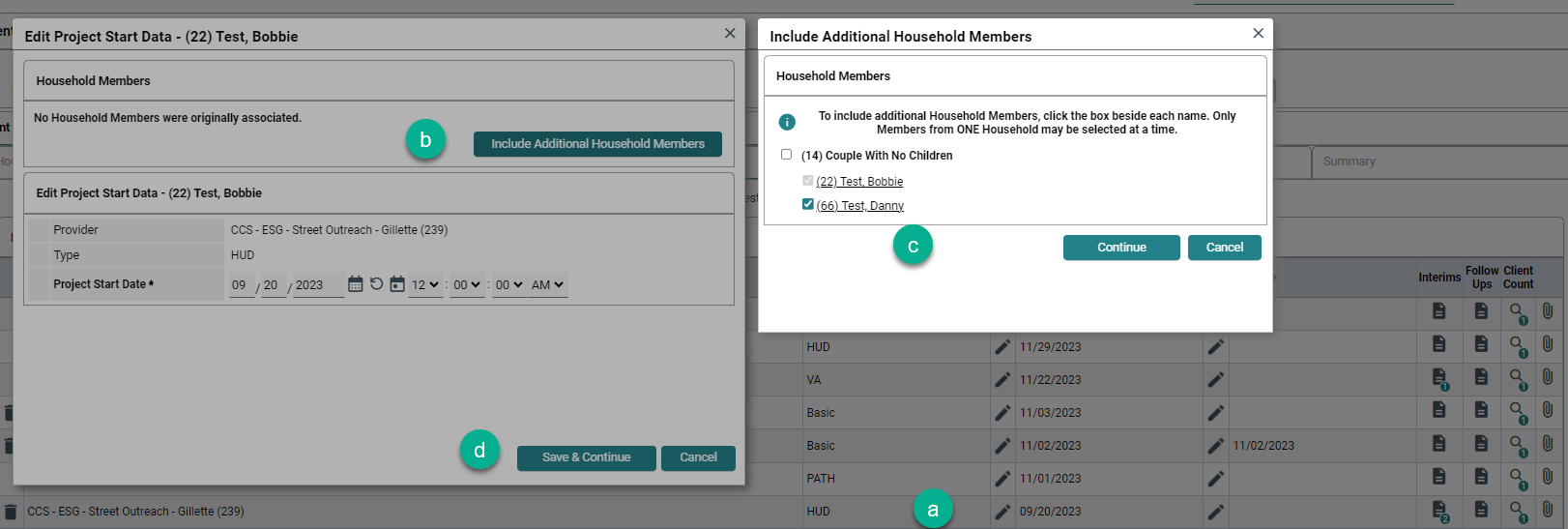
Adding the new client to the existing Project Entry
- Click on the Head of Household's Entry/Exit Tab
- Click the pencil for the entry to which you want to add the new client(s)
- Click Include Additional Household Members
- Click the box of each client(s) to be added, and click Continue
-
Click Save & Continue
- At the top of the window, click the entry pencil for the client(s) who just joined the household
- Uncheck all clients except the newly joining client(s).
- Change the date to the date the new client(s) joined, click Save & Continue
- If the family member entering is a newborn, the "Date In" cannot be the same date as the Date of Birth.
- Click on the new client(s) name on the left-hand side and complete applicable assessment questions.
- If the project is a permanent housing project and the Head of Household does have a Housing Move-In Date, the newly joining client(s) should have the Housing Move-In Date listed as the same Housing Move-In Date listed for the Head of Household
- Once all entry assessments have been completed for the newly joining client(s), click Save & Exit
